Developers
Workspace programmatic tokens, MCP snippets, CLI setup, and OAuth apps for the OpenQuok Public API.
Connect your agent today
Draft from chat, review in your calendar, and publish only what you approve.
Developers
Programmatic access for your workspace — tokens, MCP snippets, CLI setup, and OAuth apps.
Where: Settings → Developers (/account/settings?section=developers).
The Developer section is the control panel for everything programmatic in a workspace. You can reference to:
- Public API covers authentication and the Node SDK
- The API reference sections document each endpoint
- CLI usage lists command recipes.
Our Settings uses two sub-tabs:
| Tab | URL | What it holds |
|---|---|---|
| Access | /account/settings?section=developers | Programmatic token, CLI install, MCP client snippets |
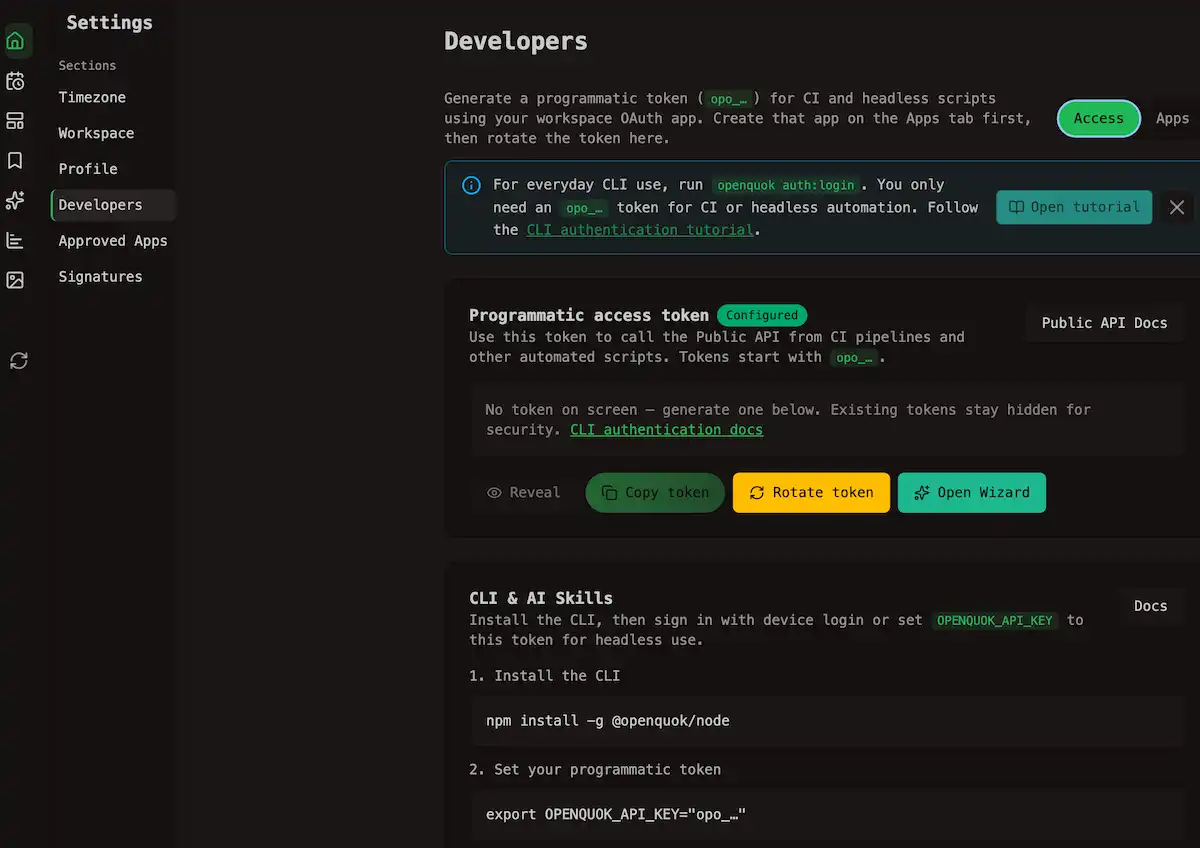
| Tab | URL | What it holds |
|---|---|---|
| Apps | /account/settings?section=developers&tab=apps | Workspace OAuth application (client ID and secret) |
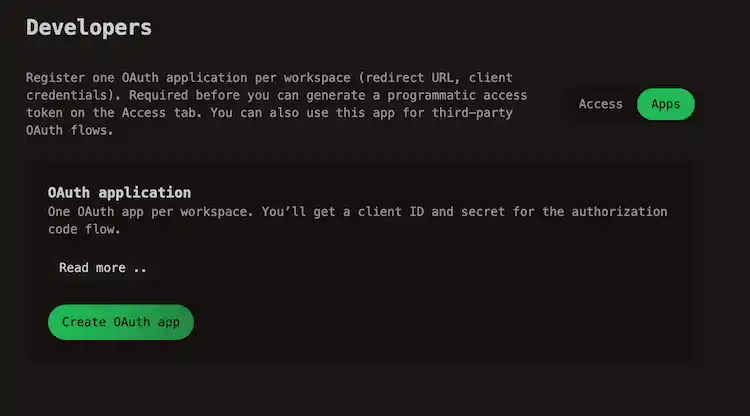
Note
Tokens and OAuth apps belong to the active workspace in the header switcher. Switch workspaces before copying credentials for another team.
Plan availability
Who can manage what
| Action | Member | Admin | Owner |
|---|---|---|---|
| View Developers | Yes | Yes | Yes |
| Generate or rotate programmatic token | No | Yes | Yes |
| Create, edit, rotate secret, or delete OAuth app | No | Yes | Yes |
Members can open the tab but cannot rotate tokens or OAuth apps.
Start on the Apps tab
OpenQuok ties programmatic tokens to a workspace OAuth application. You need to register the app on Apps before you can generate an opo_… token on Access
Create an OAuth app
Open the Apps tab. Click Create OAuth app:
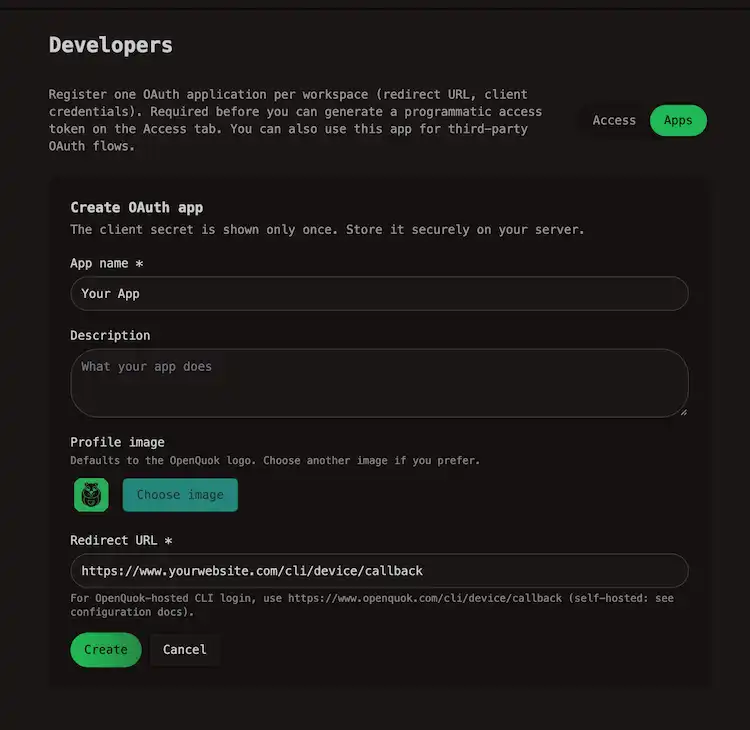
Then fill in:
| Field | Required | Notes |
|---|---|---|
| App name | Yes | Shown on the user consent screen |
| Description | No | Optional context for people authorizing your app |
| Profile image | No | Defaults to the OpenQuok logo; pick from workspace media or upload |
| Redirect URL | Yes | OAuth callback for your integration |
Each workspace gets one OAuth app. The client secret is shown only when you create the app or rotate it.
Copy credentials
After creation, copy the client ID and client secret from the Credentials card.
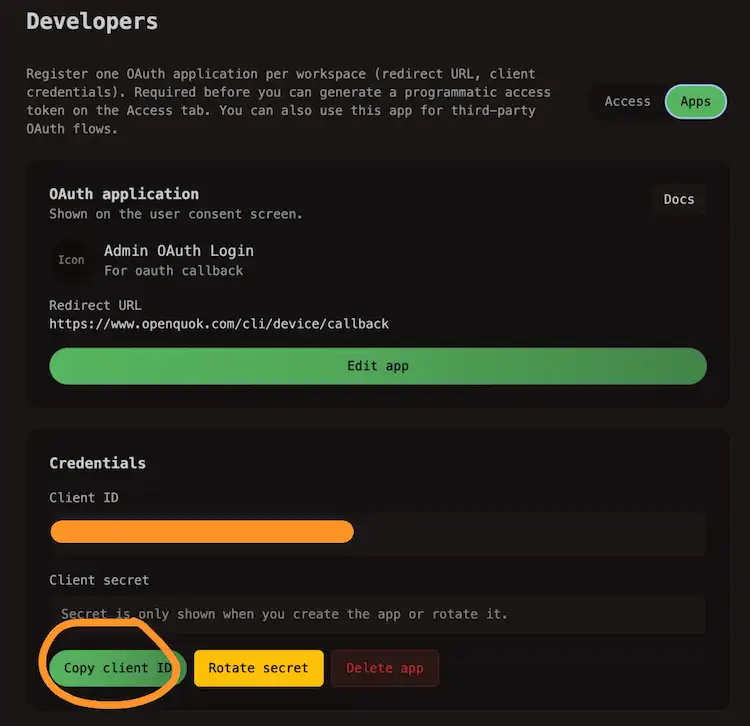
Use them for the authorization code flow — see OAuth2 for apps.
Generate a programmatic token
Switch to Access. Click Generate token (or Rotate token). The token appears once. Use Reveal and Copy token:
Warning
Rotating Programmatic token issues a new opo_… value and invalidates the old one. Update CI, MCP configs, and scripts immediately.
Warning
Rotating Client secret generates a new secret and invalidates the old one. Token exchanges using the previous secret fail until you deploy the new value.
Warning
Delete OAuth app removes the app and revokes tokens issued to users. This cannot be undone.
Access tab
Programmatic access token
The token authenticates calls to /api/v1/public/* — the same credential powers the Node SDK, openquok CLI, and MCP.
| Control | What it does |
|---|---|
| Reveal / Hide | Show or mask the token on screen |
| Copy token | Copy the full value to the clipboard |
| Generate token / Rotate token | Create or replace the workspace token (admin or owner) |
| Open Wizard | Open the in-app payload wizard to explore Public API request shapes |
Warning
Tip
For local development, run openquok auth:login (device login) instead of pasting a token. Reserve opo_… tokens for CI and headless automation. See CLI authentication.
CLI and AI skills
The CLI & AI Skills card copies ready-to-run commands:
- Install the CLI: npm install -g @openquok/node
- Export your token: OPENQUOK_API_KEY with the opo_… value
Optionally, you can run openquok auth:login. Device login opens a browser consent flow and stores credentials under ~/.openquok/credentials.json — no need to paste an opo_… token for everyday use. Stored credentials take priority over OPENQUOK_API_KEYwhen both are set.
Note
See More at CLI authentication and CLI getting started.
MCP client configuration
Scroll to MCP client configuration. Pick:
- Authentication — Authorization header (recommended) or API key in URL
- Client — Cursor, Claude Code, ChatGPT, Codex, VS Code / Copilot, and others
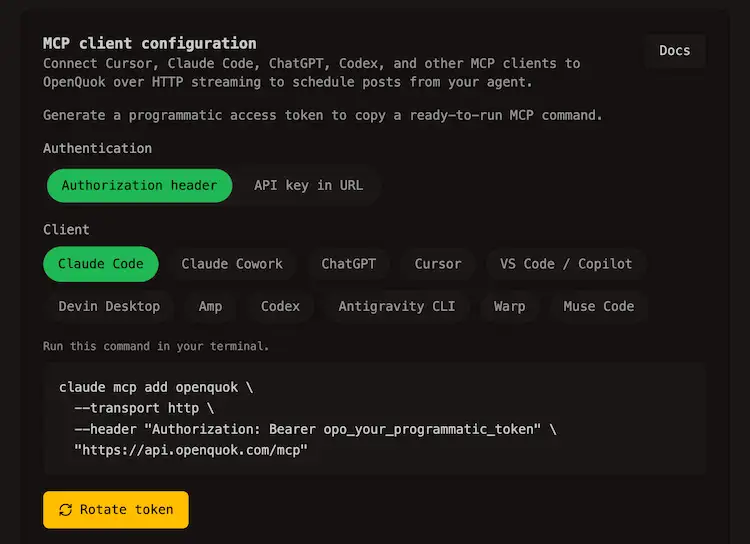
Copy the generated snippet into your MCP client. Use Reveal before copying if you want to verify the token in the command.
Note
For Self-hosting, replace the default https://api.openquok.com origin with your BACKEND_DOMAIN_URL. Align VITE_API_BASE_URL on the web app with the same API host.
Apps tab (OAuth application)
Use Apps when you build something other OpenQuok users will authorize — a partner integration, a multi-tenant product, or your own OAuth client for device login.
After the app exists you can:
- Edit app — change name, description, profile image, or redirect URL
- Copy client ID — always available on the Credentials card
- Rotate secret — new secret; old exchanges stop working
- Delete app — removes the app and revokes user tokens
For OpenQuok-hosted CLI device login, the redirect URL placeholder points at /cli/device/callback on the web app. Self-hosted installs use their own callback — see Agent configuration.
Third-party users who approved your app appear under Approved apps on their account (not under Developers).
Programmatic token or OAuth app?
| Programmatic token (opo_…) | OAuth app | |
|---|---|---|
| Acts as | Your workspace in scripts you control | Each user who completes the OAuth consent flow |
| Good for | Your CI, cron jobs, MCP, and personal automations | A product other OpenQuok workspaces will connect |
| Setup | Apps tab → Access tab → generate token | Apps tab → register app → implement the flow |
| Revoking | Rotate the token on Access | User revokes in Approved apps; or delete the app |
Automate your own posting with a programmatic token. Build an OAuth app only when other people’s workspaces need to authorize you.