Global vs per-channel
Write one caption for every channel in OpenQuok, or unlock a network when it needs its own platform-specific settings.
Connect your agent today
Draft from chat, review in your calendar, and publish only what you approve.
Global vs per-channel
One caption for every channel — or unlock one network when it needs its own copy and media.
When you schedule to more than one channel, you usually want the same message everywhere. OpenQuok starts you in Global mode for exactly that: one caption, one set of attachments, synced across every channel you picked.
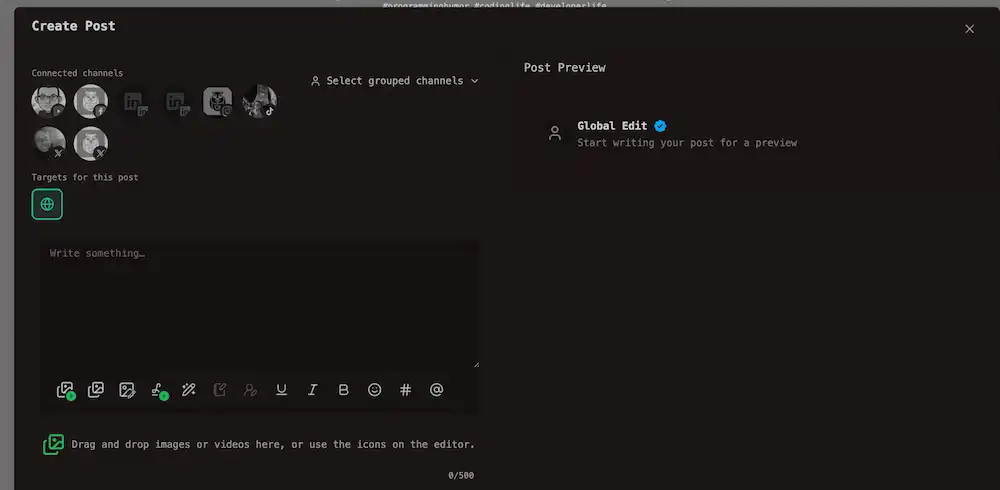
Sometimes one network needs different words or attachments — a shorter line for X, a square image for Instagram, or a formal tone on LinkedIn. Focus that channel and unlock it. From then on, that channel has its own caption and media while the rest stay on the shared draft.
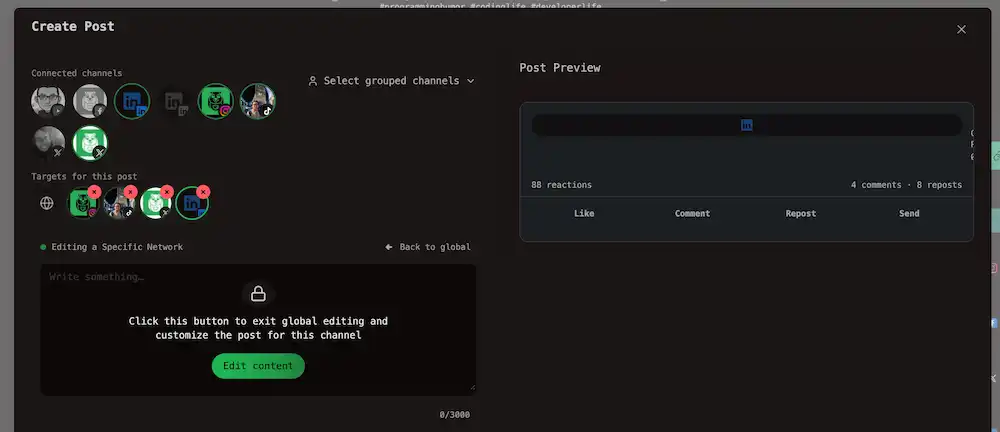
Where this lives in the editor
At the top of the composer, next to Targets for this post:
| Control | What it does |
|---|---|
| Globe button | Global mode — one caption and one attachment list for all selected channels |
| Channel avatars | In Global mode, click one to focus it and customize. In per-channel mode, click to switch which network you are editing |
The Post Preview column on the right always shows how each selected channel will look.
The default: write once
Open the composer and you are already in Global mode. The globe is highlighted. Whatever you type in the main box and whatever you attach in the media strip go to every channel you selected.
Keep editing in Global so future caption and attachment changes stay in one place.
Tip
Images and video you attach in Global mode go to every selected channel. Some networks accept fewer files or different formats; the preview and character counter warn you before save. See Media and Posting rules by platform.
Customize one channel
When one network needs its own caption or attachments:
Select your channels
Turn on every channel that should receive this post — or pick a channel group to select a whole brand at once.
Click the channel avatar
Click the avatar for the network you want to change. The editor shows Editing a Specific Network and the caption and media strip are locked.
Click Edit content
Click Edit content on the overlay. You can now edit that channel’s caption and attachments without changing the others. The media strip starts as a copy of the current Global list.
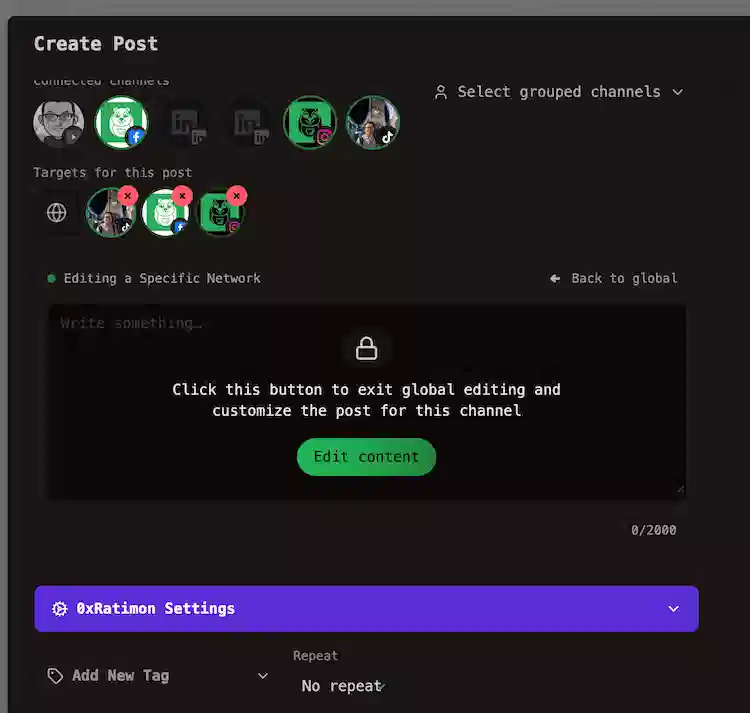
Switch between customized channels
While you stay in per-channel mode, click another avatar to edit that network’s version. Each customized channel keeps its own text and media until go back to Global.
After you unlock, changes on that channel no longer follow the Global caption or attachment list. Editing Global later will not update a channel already customized.
Go back to Global
When you are focused on one network, use ← Back to global. OpenQuok asks you to confirm — going back drops all per-channel caption and attachment and returns to the shared draft.
If you only needed different settings (a YouTube title, Dev.to tags, an Instagram post type) and not different words, you can often stay in Global and open Settings instead. See Links and validation and Posting rules by platform.
What works per-channel only
Some things only make sense on one network:
| Item | Why |
|---|---|
| Different caption | Unlock the channel and edit its text |
| Different attachments | Unlock the channel and edit the media strip — other channels keep the Global list until they are customized too |
| Provider settings | YouTube title, Dev.to series, Instagram post type, X reply audience — open Settings while that channel is focused |
| Character limit | The counter follows the focused channel (X uses a weighted count) |
| LinkedIn company mentions | Use the LinkedIn toolbar control while that channel is focused |
| @ mentions | On a customized X, LinkedIn, or LinkedIn Page channel, type @ and pick from the suggestion list (or use the toolbar @ button). Standard mode uses the textarea autocomplete; Markdown and HTML modes use TipTap mention suggestions. |
In Global mode, the toolbar @ button is disabled — focus a mention-capable channel, unlock it with Edit content, then type @ followed by at least two characters to search accounts. Use the arrow keys and Enter or Tab to pick a row.
When to stay Global vs customize
Quick Tip: Use Templates !
If you often use the same channels and make the same caption or media changes, save that as a template at /account/templates. Next time, open the template and your channels, captions, and attachments are already filled in.
Agents, CLI, and API
The same idea applies outside the dashboard:
| Layer | How it maps |
|---|---|
| Dashboard | Global mode → one body and one attachment list; customized channels → caption and media overrides per integration id |
| Public API | body and media plus optional bodiesByIntegrationId and mediaByIntegrationId keyed by channel UUID |
| CLI | --bodiesByIntegrationId and --mediaByIntegrationId for per-channel captions and attachments; --providerSettingsByIntegrationId for settings |
See Provider settings and Managing posts for request shapes and examples.