Media
Attach images and video in the post editor — device upload, library, Design Media, limits, and Global vs per-channel lists.
Connect your agent today
Draft from chat, review in your calendar, and publish only what you approve.
Media
Upload, library, Photo Editor, and drag-and-drop — one list in Global mode or per channel.
The composer attaches images and video below the caption. Use the toolbar to add files and the drag & drop to review thumbnails.
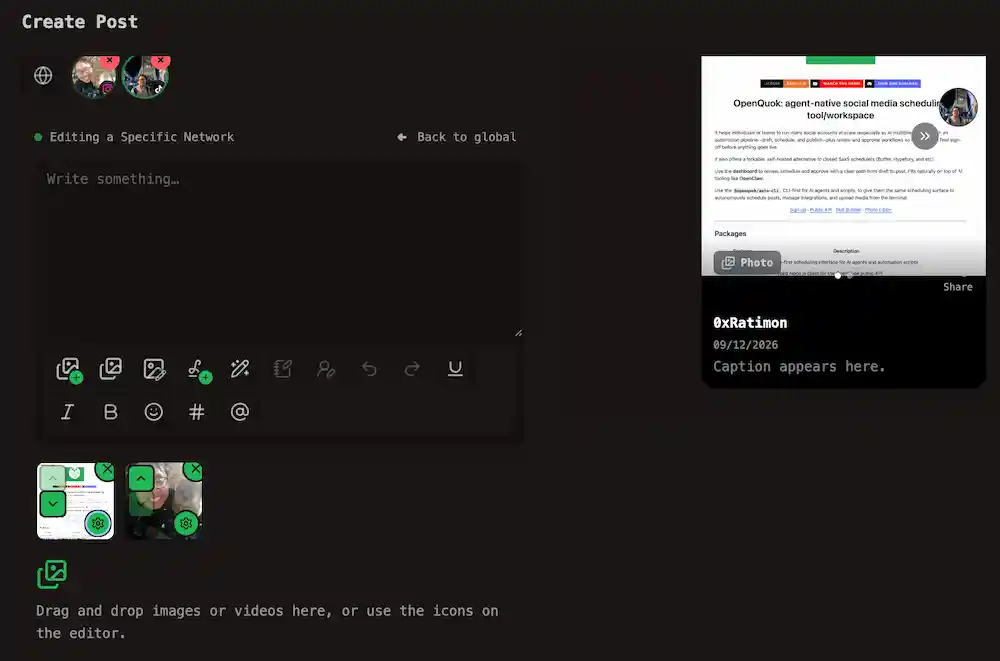
In Global mode, one attachment list is copied to every channel selected. You can unlock that channel — see Global vs per-channel.
Ways to add media
| Method | What happens |
|---|---|
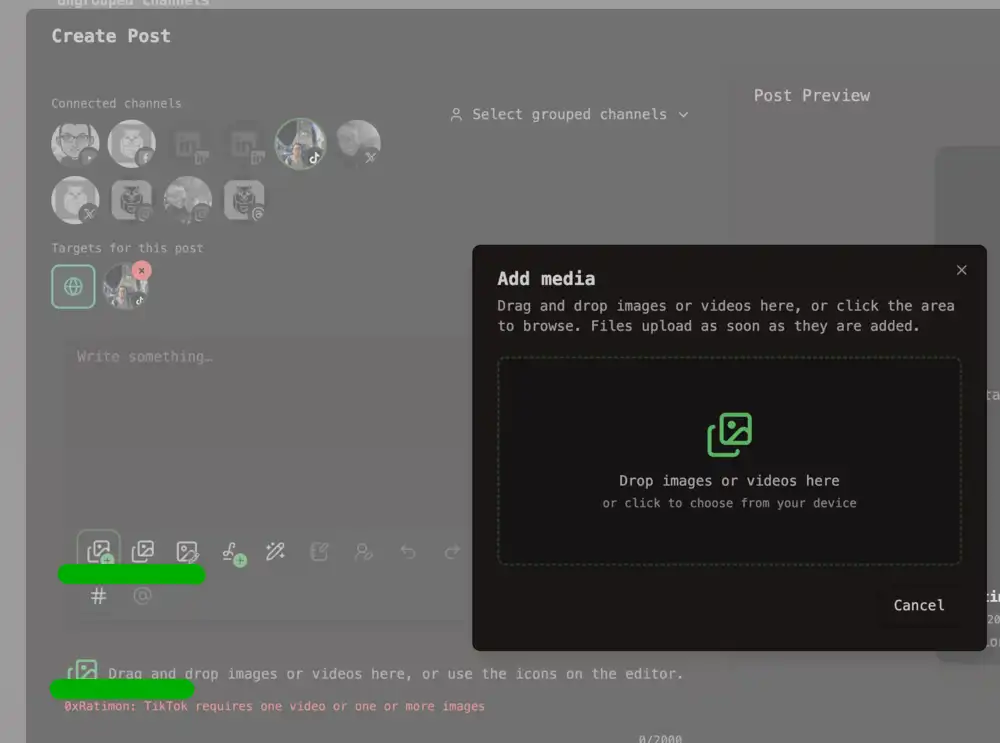
| Add media | First toolbar button opens a device picker. Choose one or more images or videos. Files upload to your workspace. |
| Drag and drop | Drop images or videos onto the area below toolbar. |
| Media library | Second toolbar button — attach files already stored at /account/media. See Tour the app for where the library lives in the sidebar. |
| Design Media | Canvas toolbar button — open the Photo Editor, create or edit a visual, then choose Use this media to attach the export. Same canvas as the public Photo Editor tool. |
Note
Sign in to attach from the media library or Design Media. The public Photo Editor tool can export without a workspace.
Limits and formats
| Limit | |
|---|---|
| Image | 10 MB each |
| Video | 1 GB each |
| Accepted | JPEG, PNG, GIF, WebP, SVG, AVIF, MP4, MOV, WebM, M4V, MPEG |
Note
The browser blocks an image over 30 MB before upload. The server rejects an image over 10 MB. One drop or multi-select cannot exceed 1 GB total.
The post editor accepts images and videos only. The media library, CLI, and Uploads API also accept audio and PDF.
Platform rules vary by platform: YouTube wants exactly one video, Instagram needs at least one attachment, and TikTok does not mix photos and video. See Posting rules by platform. The Post Preview column and the validation under the media strip warn you before save.
Reorder and remove
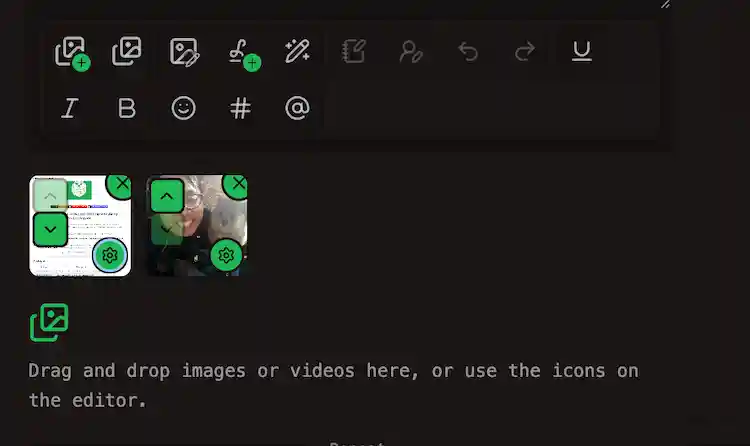
Each thumbnail has Move up and Move down chevrons and a X to detach. The Order is publish order.
Media settings
In the post editor, click a strip thumbnail or the gear icon (bottom-right of each thumbnail) to open Media details.
| Field | What you can set |
|---|---|
| Alt text | Up to 2000 characters. Describes the image for accessibility(for SEO) and preview. |
| Video poster | Choose Create thumbnail, drag the slider to the frame you want, then Use current frame as thumbnail. That image is the video cover. Clear thumbnail removes it. |
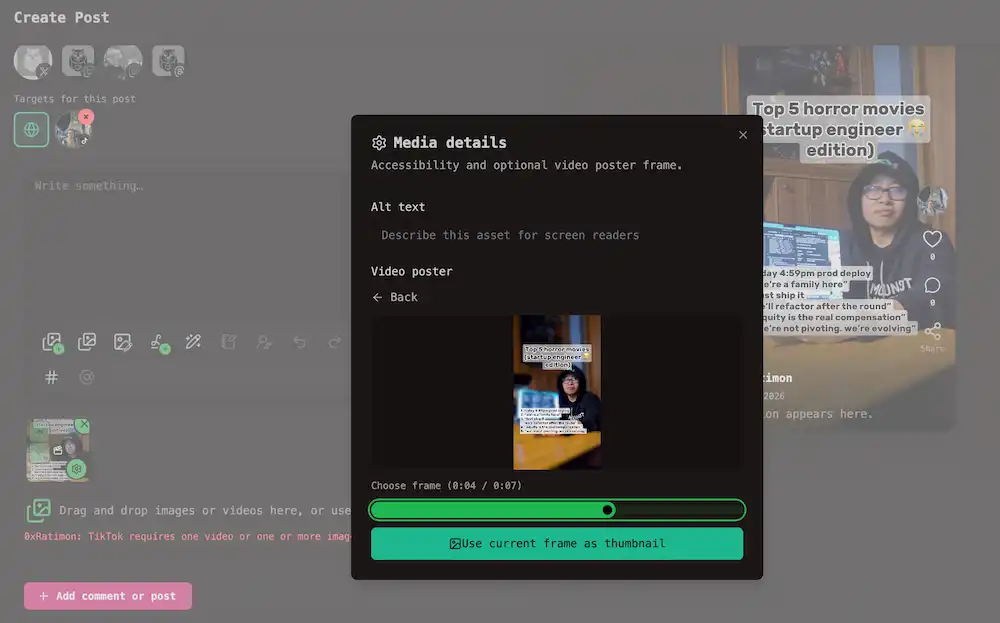
Changes save to the workspace media library. The same Media details dialog is available on /account/media.
At publish time, Instagram uses the video poster timestamp for reel cover offset. OpenQuok does not send alt text to Meta or X APIs.
Channel-specific visuals that are part of publish settings stay in Settings — for example a YouTube custom thumbnail or a Dev.to cover image. See Posting rules by platform.
Photo Editor
Design Media in the composer opens the same Konva canvas as /tools/photo-editor. Draw, add text, or start from a template, then export with Use this media to add the image to the post.
Cloud save requires a signed-in workspace. If workspace storage is full, save is blocked — see Cloud limits.
Global mode (default)
Open the composer and you are already in Global mode. Whatever you attach in the media strip is scheduled on every selected channel.
Per-channel attachments
Sometimes one channel needs a different image or video — a square crop for Instagram, a shorter clip for TikTok, or no media at all.
The flow:
Focus the channel
Click that channel’s avatar at the top of the composer. The caption and media strip are locked behind the same overlay.
Click Edit content
Unlock the channel. The media strip shows a copy of the current Global list — change it without affecting channels you have not customized yet.
Edit attachments for that channel only
Add, remove, or reorder files in the media strip. Switch to another customized channel by clicking its avatar; each keeps its own list until you save.
Save as usual
OpenQuok stores per-channel lists only for channels you edited while unlocked. Everyone else keeps the shared Global attachments.
Channels you never unlock still receive the Global media list. Going back to Global with ← Back to global drops all per-channel caption and attachment. See Go back to Global.
When an upload fails
| Problem | What to try |
|---|---|
| Unsupported file type | The composer rejects files that are not image/* or video/*. The library and API also allow audio/* and application/pdf. You see an error toast when the type is not allowed |
| File too large | Images over 30 MB are blocked in the browser before upload. Images over 10 MB are rejected on the server. Videos over 1 GB are rejected. A multi-file batch over 1 GB total is rejected |
| Platform rules after upload | Upload can succeed and save-time validation still fails — for example too many images on X, mixed photos and video on TikTok, or no media on Instagram. Fix the strip or unlock that channel and adjust. See Posting rules by platform |
| Workspace storage full | On OpenQuok Cloud, uploads stop when the workspace hits its media storage cap. Delete files in the library or upgrade — see Cloud limits |
Public API and CLI
Outside the dashboard, pass shared attachments in media and channel-specific lists in mediaByIntegrationId (keyed by integration UUID). Channels omitted from the map inherit the top-level media array.
Upload assets first with openquok upload or upload-from-url, or POST /public/uploads, then reference the returned id and path values. Step-by-step commands are in Media upload; HTTP details are in Uploads APIs.