Profile
Your OpenQuok account profile — display name, username, avatar, website, and password reset.
Connect your agent today
Draft from chat, review in your calendar, and publish only what you approve.
Profile
Your personal account details — separate from any workspace you belong to.
Where: Settings → Profile (/account/settings?section=profile).
This setting section holds your user account, not workspace settings. Teammates in the same workspace each manage their own profile. Changes here follow you across every workspace you join.
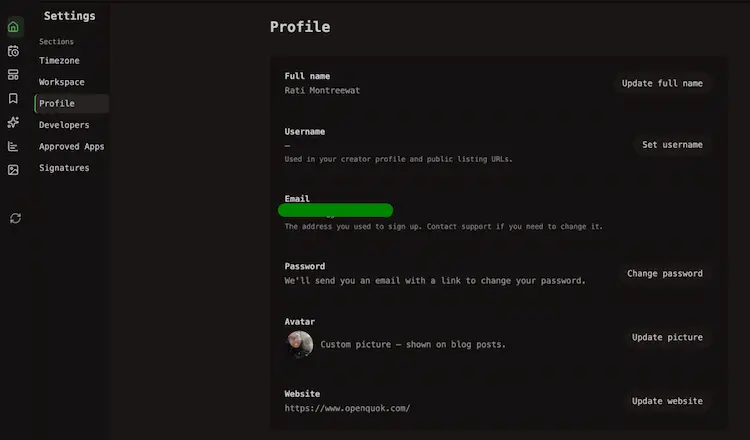
What’s on the page
| Field | What it does |
|---|---|
| Full name | Shown in the app and on blog posts you author |
| Username | Public creator handle for /creators/{username} and listing URLs |
| Sign-in address — read-only in Settings | |
| Password | Request a change-password email, or set a new password after the link |
| Avatar | Optional profile picture — shown on blog posts |
| Website | Optional author link on blog posts |
Each editable row opens a dialog. Click Save in the dialog to persist changes.
Full name
Click Update full name, enter your name, and save. The field is required — you cannot save an empty value.
Username and creator profile
Your username powers public creator URLs:
- Creator profile: /creators/{username}
- Building blocks and playbooks you publish appear under that path once approved
Click Set username or Update username on the Profile row. Rules:
| Rule | Detail |
|---|---|
| Length | 3–30 characters |
| Characters | Lowercase letters, numbers, and hyphens only |
| Format | Must start and end with a letter or number |
Note
If you try to publish a listing before choosing a username, OpenQuok sends you to Choose username first. You can also set it anytime from Profile.
The Email row shows the address you used to sign up. It cannot be changed in Settings. Contact support if you need to move your account to a different address.
Change your password
From Profile, click Change password. OpenQuok emails you a link. Follow it to confirm, then enter a new password on the change-password page.
Request the email
On Profile, click Change password. Check the inbox for your account email.
Open the link
The email link opens a confirmation step. If the link is invalid or expired, request a new email from Profile.
Set a new password
After confirmation, enter and confirm a new password. It must be at least 8 characters. When you are already signed in, you can also open /account/settings/password directly to update your password without the email step.
Avatar
Click Update picture to upload or replace your avatar.
- Formats: PNG, JPG, or WebP
- Max size: 4 MB
- Optional — a custom picture is shown on blog posts; without one, posts use a default avatar
Website
Click Update website to add or change your author site. The URL must start with http:// or https://. Leave the field empty to clear it. The link appears on blog posts you author.
Account vs workspace
| Scope | Where to manage |
|---|---|
| Your account (this page) | Full name, username, email display, password, avatar, website |
| A workspace | Name, team, invites, roles — see Team |
| Display preferences | Clock format and posting timezone — see Timezone |