Writing the post
Write captions in the OpenQuok social scheduler — editor modes, toolbar, character count, mentions, AI tools, and Post Preview.
Connect your agent today
Draft from chat, review in your calendar, and publish only what you approve.
Writing the post
Captions, editor modes, toolbar tools, character counts, and live Post Preview.
The left column of the post editor is where you write the post. A caption box sits above the toolbar — media, signatures, styling, AI helpers, and more.
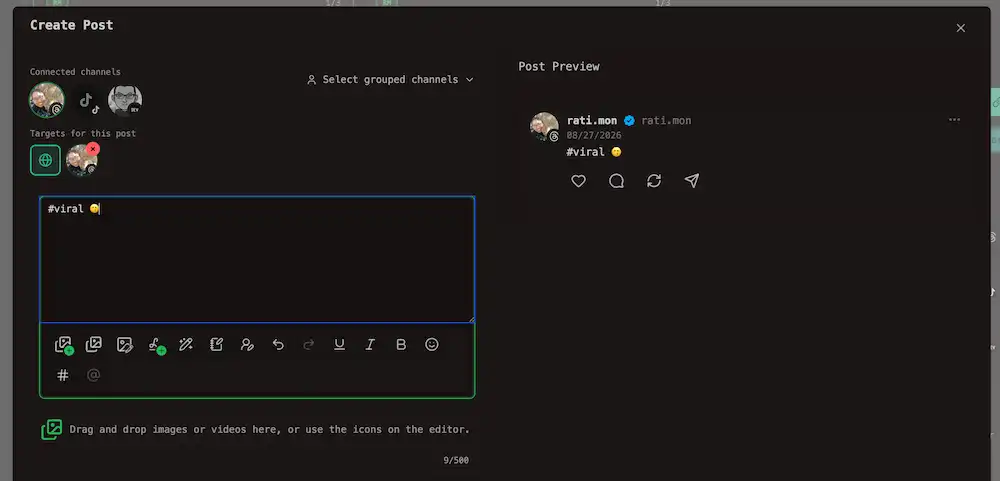
Post Preview
The Post Preview column on the right shows how each selected channel will render your caption and attachments before you save.
The caption box
In Global mode the caption box is always Standard: a plain textarea where you type plain text and line breaks stay as you entered them.
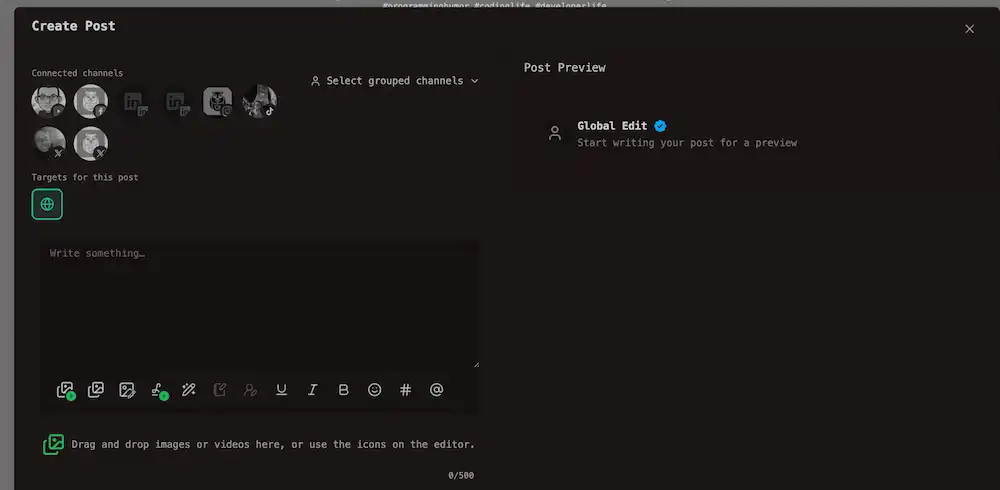
When you unlock a channel that needs a different editor (eg. Dev.to uses Markdown; X uses HTML), the box switches to a rich editor with links, headings, and lists.
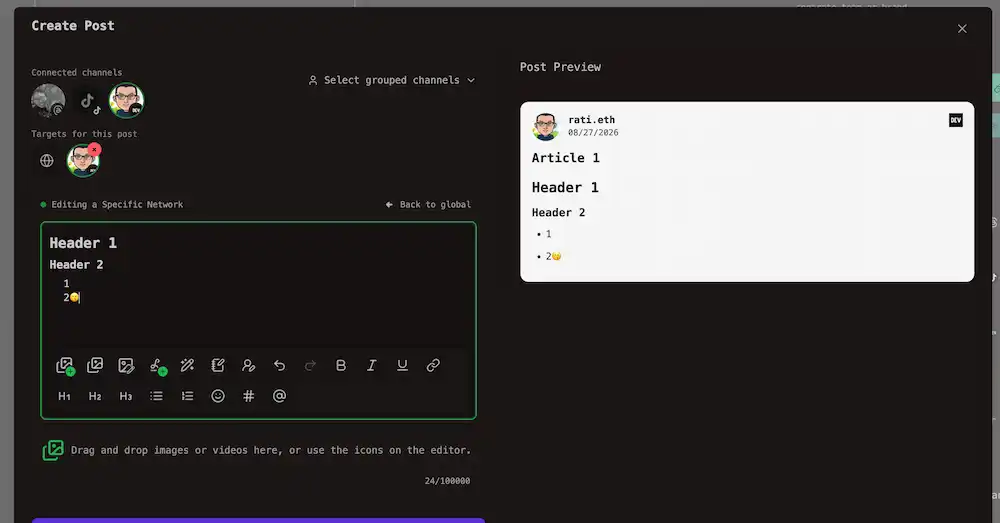
See Editor by platform below for which toolbar you get on each network.
Network-specific link rules are here.
Warning
Toolbar Undo and Redo keep about 100 steps. Switching focus between customized channels remounts the caption box and clears that history — save before switching or leaving.
Editor by platform
Each channel has an editor mode. Global mode always uses Standard. Focus a channel and choose Edit content to unlock that network’s editor — see Global vs per-channel.
| Editor | Toolbar | Used by |
|---|---|---|
| Plain none | Emoji, signatures, media, AI Writer, undo/redo | None yet — reserved for plain-text-only networks |
| Standard normal | Bold, Italic, Underline, Emoji, Hashtag, @ mention, signatures, media, AI Writer, undo/redo | Global mode; LinkedIn, Instagram, Facebook, YouTube, TikTok, Threads, and most social channels |
| Markdown markdown | Standard tools plus links, Headings (H1–H3), Bullet and Numbered lists | Dev.to when unlocked |
| HTML html | Same rich controls as Markdown | X when unlocked — tweets still publish as plain text |
Media, Signatures, AI, and Undo/Redo stay available in every mode.
The LinkedIn company mention button appears only when a LinkedIn or LinkedIn Page channel is focused.
Text styling (bold, italic, underline)
Standard (Global mode and most channels): select text, then click Bold, Italic, or Underline. OpenQuok replaces the selection with Unicode characters — they look bold or italic in the Post Preview, but some channels may read them as normal letters.
Markdown or HTML (for example Dev.to or X): the real bold, italic, and underline style are applied inside the editor.
Emoji
Click Emoji to open the picker and insert at the cursor, or paste emoji from your keyboard.
Hashtags
The Hashtag button inserts # at the cursor; it is hidden in Plain mode and there is no autocomplete list.
Character count
A count/limit badge under the caption box tracks how much you have written.
| Mode | What the counter shows |
|---|---|
| Global | Plain character count against the tightest limit among your selected channels (for example 280 when X is selected). When X is among the selection, the count is weighted — links and mentions can cost more than one character |
| Focused channel | Count and limit for that network |
| X focused | Weighted count — links and mentions can cost more than one character; limit is 280 or 4000 |
Per-network caps and save-time length errors are in Posting rules by platform and Links and validation. When one channel is over its limit, customize that caption — see Global vs per-channel.
Mentions
Type @ on an unlocked X, LinkedIn, or LinkedIn Page channel after at least two characters to search accounts.
The toolbar @ button is disabled in Global mode — choose Edit content on the channel first. When a LinkedIn or LinkedIn Page channel is focused, the toolbar also opens the company mention modal for organization pages.
Note
Mention suggestions only appear on a customized channel that supports mentions — not in Global mode.
Signatures
Click Signatures on the toolbar to insert a saved sign-off at the end of the caption. OpenQuok can also auto-add the signature marked Auto add when you open an empty composer — create and manage sign-offs in Settings → Signatures.
Links
In Standard mode, type or paste URLs as plain text — OpenQuok does not validate schemes while you type. In Markdown and HTML unlock modes, use the toolbar Link button; only http and https URLs are accepted (a toast appears if you try another scheme). Save-time link rules and provider URL fields are in Links and validation.
AI writing tools
Three toolbar tools use Chrome on-device AI — they run locally in your browser and do not send caption text to OpenQuok servers.
| Tool | What it does |
|---|---|
| AI Writer | Drafts new copy from your prompt and appends it to the caption |
| Summarizer | Shortens the current caption or your selection |
| Sound more human | Rewrites the caption or selection for a more natural tone |
AI Writer opens a modal where you can refine the draft before posting.
You can try our Humanizer tool without sign up. See more at AI generation.
Thread reply boxes
Supported networks (Threads, X, Instagram) can add delayed Follow-up comments — thread replies or comments — see Threads and comments.