Manage a channel
Reconnect, disable, or remove a connected social account in OpenQuok.
Connect your agent today
Draft from chat, review in your calendar, and publish only what you approve.
Open the channel
Reconnect, disable, copy IDs, assign groups, and remove channels from Home or the calendar.
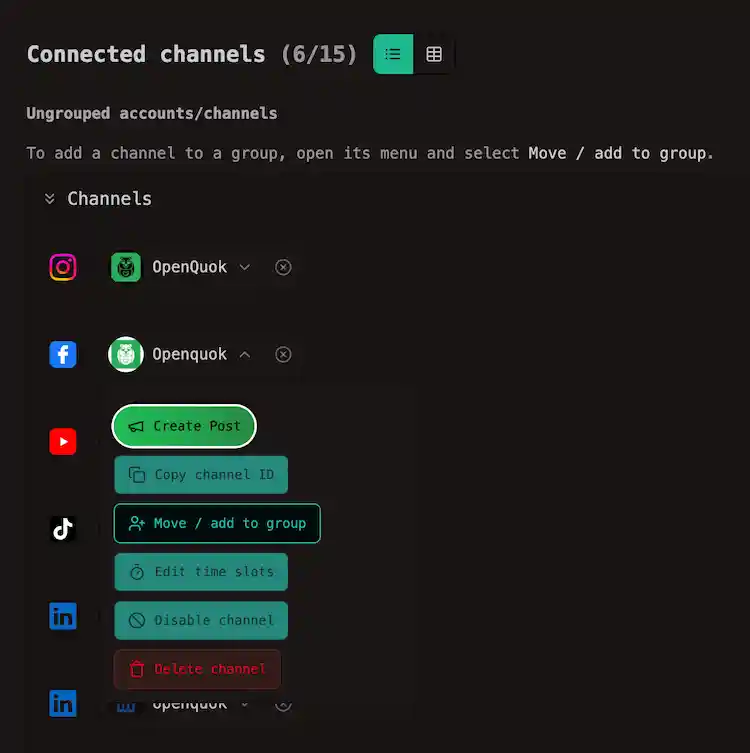
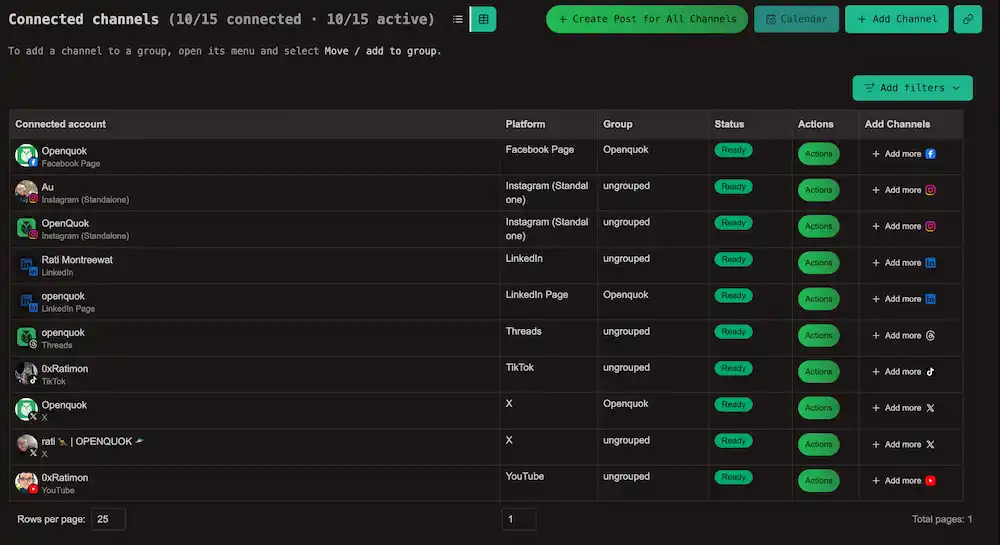
Where: Home — click the channel and the actions modal appears. If Home is in table layout, click Actions. You can also open a channel chip on the calendar.
Switch to table view (the table icon next to Connected channels), then click Add filters to open the smart filter. Narrow the list by social platform, connected account, group, or status, then click Actions on the row you want.
What you can do
| Action | What it does |
|---|---|
| Create Post | Opens the editor with this channel already selected |
| Complete setup | Finish picking a Page, channel, or account — see Connect a channel |
| Refresh connection | Sign in again, or paste a new API key. Shown when the login is stale |
| Copy channel ID | Copies this channel’s id. You only need it for the API, CLI, or an assistant |
| Move / add to group | Puts the channel in a channel group |
| Edit time slots | The times of day you usually post — see Posting time slots |
| Disable channel | Stops posting without removing the connection. Use Enable channel to resume |
| Delete channel | Removes the connection from this workspace and deletes posts for this channel |
When the login expires
Social logins do not last forever. When one stops working, the channel shows Refresh needed and new posts start failing.
Click Refresh connection. For most networks you approve access in the browser again.
A few things to keep in mind:
- Refreshing is not the same as adding a new channel. On Cloud it does not use another channel slot.
- Approve the same account. Signing in as someone else mixes that channel’s history with a different profile.
- Posts that already failed are not sent again on their own. Open the failed card, fix anything that needs it, and schedule it once more.
Tip
If you connected with an invite link, send a fresh invite and have the same person approve access again.
Pause or remove
On Cloud, plan limits treat channels in two ways. A connected cap counts every non-deleted channel (including disabled ones). An active cap counts only channels that are not disabled. See Cloud limits.
Disable leaves the channel in the workspace but takes it out of service. You cannot schedule new posts to it until you click Enable channel.Posts that were already scheduled are not cancelled. They stay on the calendar until their time, then fail. Re-enable the channel before that time if you still want them to go out.
After a plan downgrade, OpenQuok may auto-disable the most recently connected channels until the workspace is within the new active limit. Connected channels stay in the workspace; only their active status changes.
Delete removes the connection. OpenQuok asks you to confirm, then Remove. The confirmation dialog warns that posts for this channel will also be deleted.That includes sibling rows on other channels in the same post group. Already-published copies on the social network stay up. You can connect that account again later.
Freeing a connected slot
To free a connected slot on Cloud, delete a channel you no longer need, or upgrade. Disable does not free a connected slot. See Cloud limits.
On self-hosted OpenQuok with billing unset, there is no channel cap. Disable and delete are only about whether you still want that account in the workspace.