Scheduling and Publishing
Draft, schedule, and publish now — pick a time, repeat a post.
Connect your agent today
Draft from chat, review in your calendar, and publish only what you approve.
Scheduling
Save as draft, add to the calendar, or publish now — plus repeat and tags in the footer.
Where: Inside the composer, the footer bar — tags and repeat on the left; date, time, and save buttons on the right.
The three ways to finish a post
| Button | What happens |
|---|---|
| Save as draft | The post stays in Drafted posts on Home. It never publishes until you schedule it. |
| Add to calendar | Scheduled for the date and time in the footer. |
| Publish now | Publish Now. Open the ⋯ menu on the schedule button to reveal it. |
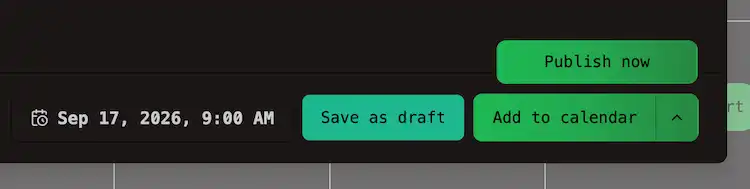
When you edit an existing post, the primary button depends on its current status: Schedule for a draft (moves it onto the calendar), or Update for an already scheduled post. A Delete Post option appears on the left.
You can also move cards on the Home kanban — drag between Drafted posts and Scheduled posts, or drop on Published posts to publish now. See Kanban board.
Picking a time
Click the date control in the footer. The popover sets the day, the hour and minute under Pick time.
If you opened the post editor from a calendar slot, that time is already filled in.
For a new post, OpenQuok suggests the next free time from your channels’ time slots.
Tip
Note
The timezone setting is stored in this browser. Teammates who use a different zone may see different labels for the same scheduled post until everyone aligns Settings.
Repeating a post
The Repeat dropdown turns one post into a recurring series:
Day, Two Days, Three Days, Four Days, Five Days, Six Days, Week, Two Weeks, or Month.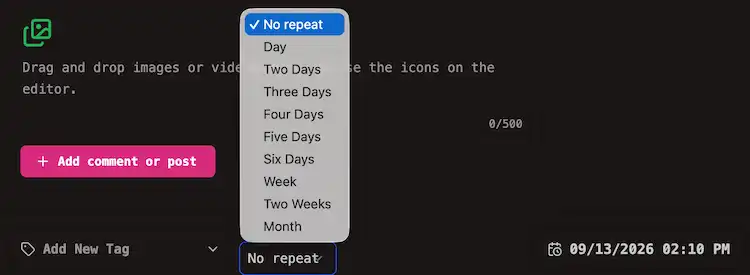
Choose No repeat to stop scheduling further copies after the current post publishes.
After each successful publish, OpenQuok creates the next scheduled copy on the same cadence. Edit the queued post before its time if you need to change copy or media for the next run.
Tags
Tags sit in the footer beside repeat. Create one with a color — the first tag on a group sets the chip header colour on the calendar and on Home kanban cards. Draft vs scheduled is shown by a Draft: body prefix and dashed outline, not by different header theme colours. Use tags to spot a specific campaign, client, or content type in the calendar.
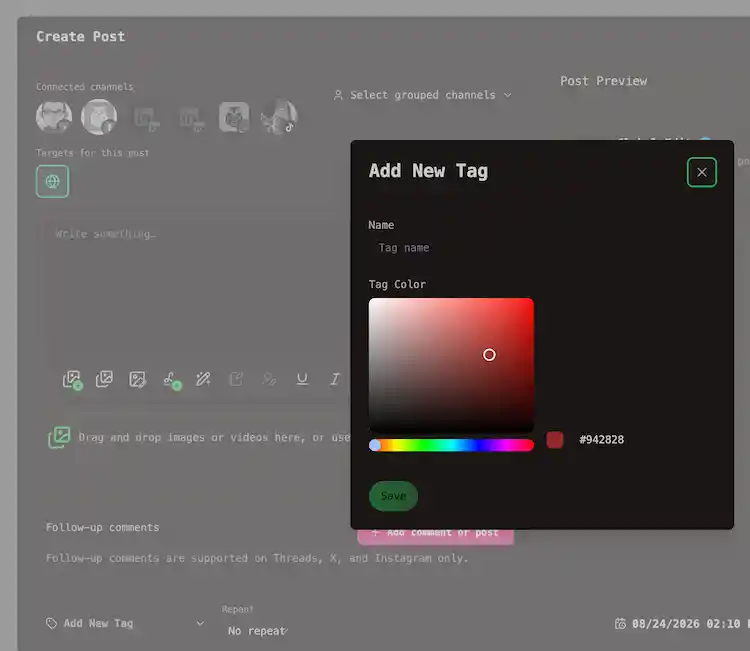
Tags can be edited and deleted later. The color change applies everywhere the tag is used.
Drafts
Use a draft to hold a post in your workspace until you are ready to schedule it:
- Post’s content still pending — send a preview link and keep the row as a draft until you schedule.
- You are mapping out next week’s slots but are not ready to commit publish times yet.
- You stepped away mid-compose — saving as draft beats losing changes when the close dialog appears.
Drafts list under Drafted posts on Home and on the calendar with a Draft: prefix and a dashed chip outline. They never leave that state until you schedule them (Add to calendar) or drag the card into Scheduled posts on the kanban.
Agent, MCP, CLI, and public API drafts land in the same queue. Filter Source → Agent on the kanban when you only want machine-created rows. See AI generation.
What happens after you schedule
The post sits in its slot until its time, then OpenQuok publishes it to each selected channel.
On Home, the card moves to Published posts when the network confirms. You get a notification with the live link when the provider returns one. Check the bell icon in the header if you miss it.
On the calendar, the card shows in the slot you chose. After publish, open the card menu for the live URL.
If publish fails, the card shows Failed. Open it for the platform error. OpenQuok does not silently retry a rejected post — fix the cause, reconnect the channel if auth failed, and schedule again. See Posting rules by platform and Glossary → Post states.
Tip
Drop a draft or scheduled card on Published posts on the kanban to publish immediately. OpenQuok asks you to confirm. The card stays in Scheduled posts until publish completes.