Team
Invite teammates, assign roles, switch workspaces, and manage your OpenQuok workspace.
Connect your agent today
Draft from chat, review in your calendar, and publish only what you approve.
Team and workspace
Invite teammates, set roles, and manage the workspaces you belong to.
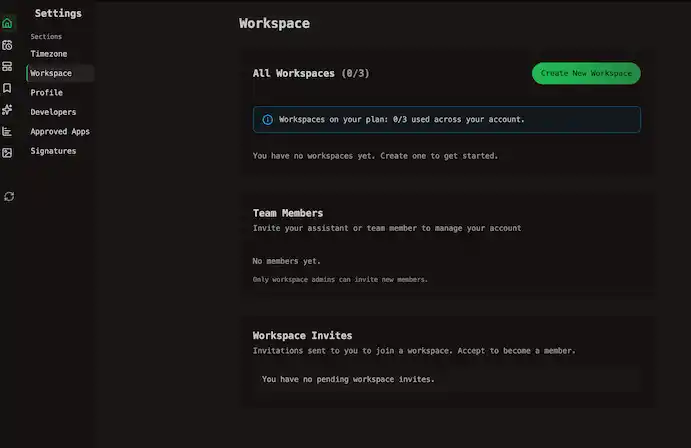
Where: Settings → Workspace (/account/settings?section=workspace).
A workspace is the boundary for channels, posts, media, and teammates. You can belong to more than one. The header switcher loads another workspace’s data when you change workspace.
The first person who creates a workspace is the owner. Everything in that workspace — channels, posts, templates — stays with the workspace when someone leaves.
Roles
| Role | Can do |
|---|---|
| Member | Work with channels and posts |
| Admin | The above, plus invite members and edit workspace details |
| Owner | The above, plus delete the workspace and manage billing on Cloud |
You can only manage people below your own level. An admin cannot remove the owner.
Invites offer Member or Admin only. The owner role is assigned when the workspace is created.
Invite a teammate
Open the invite dialog
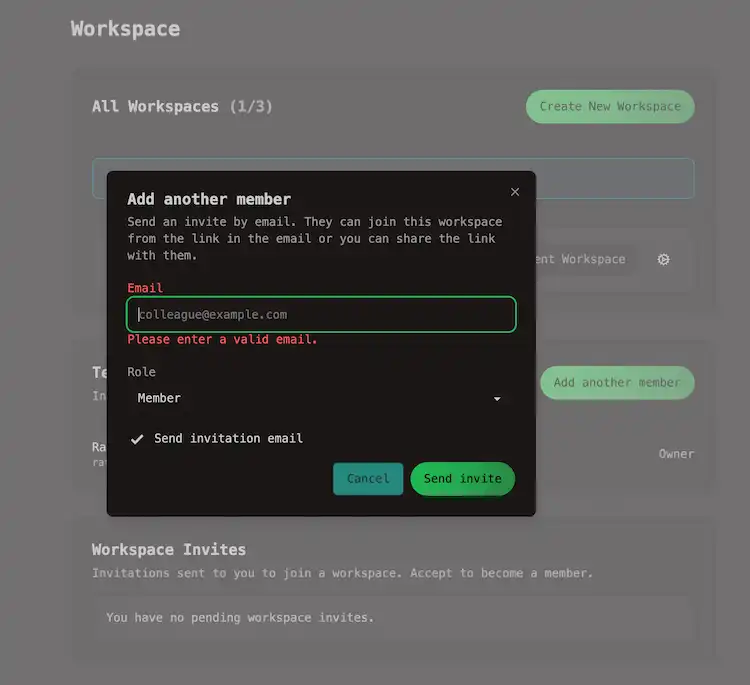
On Workspace, find Team Members for the current workspace. Click Add another member.
Note
Enter email and role
Type the person’s email. Pick Member or Admin.
Choose email delivery
Leave Send invitation email checked to mail them the link. Clear it when you want to copy the link yourself — useful when email is unreliable.
The invitees accept
The invite link expires after a set time. they can accept from the join page when they open the link. Send a new invite if it lapses.
Tip
Pending and incoming invites
Pending invitations (visible to the owner only) lists invites you sent that are not yet accepted. Click Cancel to free a seat before someone joins.
Workspace Invites lists invitations sent to you. Click Accept to join that workspace with the role shown on the row.
Note
Each pending invite counts toward your team seat cap until it is accepted or cancelled. At the limit, upgrade on Billing or cancel a pending invite. See Cloud limits.
Multiple workspaces
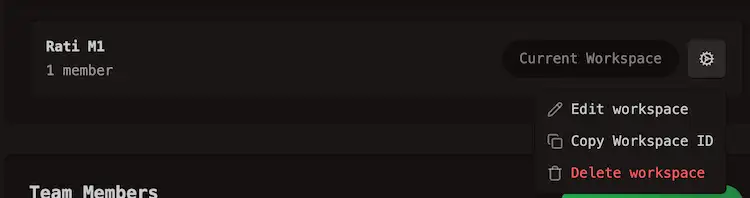
The All Workspaces lists every workspace you belong to.
| Action | Who |
|---|---|
| Switch | Any member — loads that workspace in the app |
| Edit workspace | Admin or owner — name and description |
| Copy Workspace ID | Any member — for API and support |
| Leave workspace | Any member who is not the owner |
| Delete workspace | Owner only — removes the workspace and its data |
Click Create New Workspace to start a separate workspace with its own channels and member list. Cloud plans cap how many workspaces you can own. See Pricing.
Working with clients
Tip
- Channel invite links let a client connect their own social account without an OpenQuok login. See Let clients connect their own account.
- Preview links let a client review and comment on specific posts without seeing the rest of the workspace. See Approvals.
- Channel groups keep each client’s channels together on Home and the calendar. See Channel groups.
None of these consume a team seat.