Cursor
Connect OpenQuok MCP to Cursor via .cursor/mcp.json for Agent, Composer, and inline chat tools.
Connect your agent today
Draft from chat, review in your calendar, and publish only what you approve.
Prerequisites
- Cursor with MCP support enabled (recent stable builds).
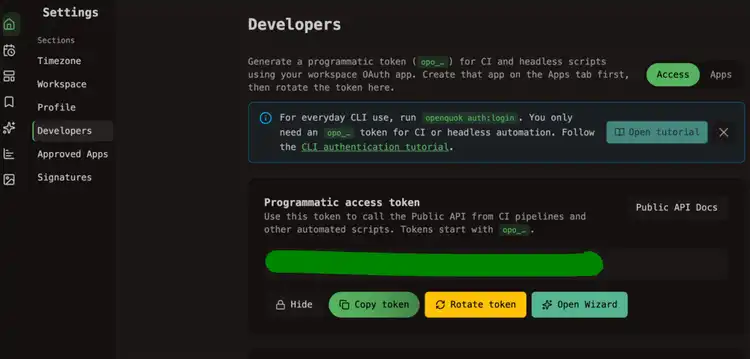
- An OpenQuok programmatic token (opo_) from Account → Settings → Developers → Access.
- At least one connected social channel in your OpenQuok workspace (for verification).
Configuration file
Cursor reads MCP servers from .cursor/mcp.json at the project root. Create the file (or merge into an existing one) so Agent and Composer can call OpenQuok tools.
Dashboard generator
Copy a ready-made snippet from MCP client configuration on the Developers → Access page. Choose Cursor and your preferred auth method.
Setup
Generate your token
In the OpenQuok app, open Account → Settings → Developers → Access. Create an OAuth app if prompted, then generate an opo_… token.
Create or edit .cursor/mcp.json
In your project root, add an openquok entry under mcpServers:
Attach OpenQuok in Cursor
Save .cursor/mcp.json, then make sure Cursor has loaded the server into the session you will use:
- Open Customize → MCPs (or Cursor Settings → MCP on builds that still use that label).
- Confirm openquok shows as connected — not error or disabled.
- Start a new Agent or Composer chat and ask there. Existing sessions often keep the old server list and will not see tools from a server added after the chat started.
On some Cursor versions, editing mcp.json alone is not enough. If the file looks valid but openquok is missing or stuck, fully quit Cursor and reopen the project, then repeat the steps above.
Verify the connection
Ask your agent:
List my connected social media accounts
The agent should call integrationList and return channel names and IDs from your workspace.
Self-hosted API
Replace https://api.openquok.com with your BACKEND_DOMAIN_URL origin (no /api/v1 suffix). The MCP path is always /mcp on the API host.
Troubleshooting
Server not listed
Confirm .cursor/mcp.json is at the workspace root Cursor opened — not a parent folder. Merge multiple servers under one mcpServers object; duplicate top-level keys overwrite earlier entries.
Config valid, but tools missing in chat
.cursor/mcp.json can be correct while the current chat still has no OpenQuok tools. After a full quit and reopen:
- Open Customize → MCPs and confirm openquok is connected (not error or disabled).
- Start a new agent chat and ask again — existing sessions often keep the old server list.
Auth failures
If header auth fails, switch to API key in URL in the dashboard snippet and retry. If path auth fails, confirm the full opo_ token was pasted with no trailing spaces.